Install Amazon DCV
We use the Amazon DCV technology to connect securely to the simulator application hosted on the remote server. The Amazon DCV client was previously known as NICE DCV client, and some screenshots may reflect the NICE branding. Keep your installation up to date for best performance.
Download Amazon DCV
Download the latest Amazon DCV client for Windows (Recommended)
Not using Windows? See this page for a list of supported operating systems and clients.
Install Amazon DCV
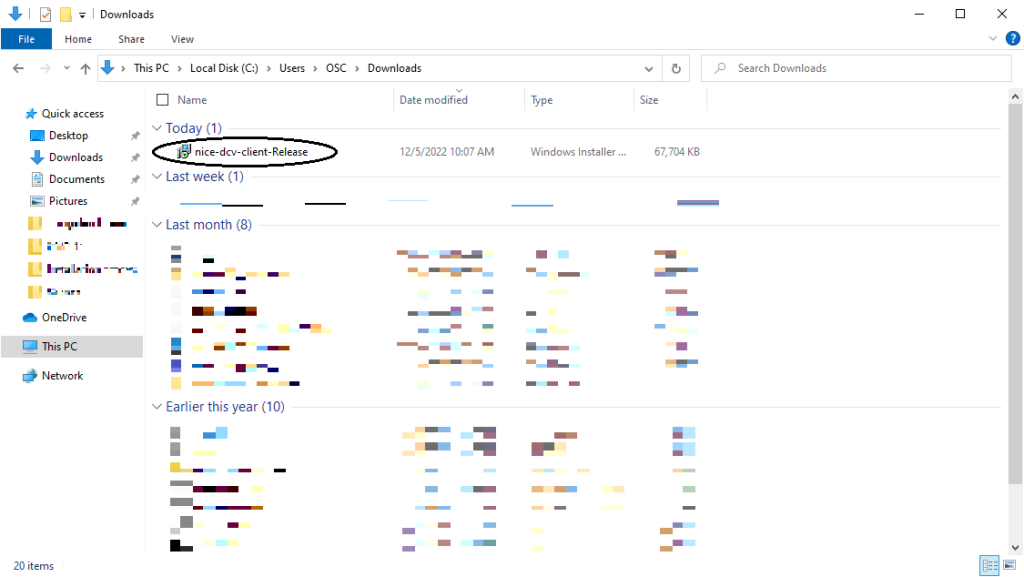
Once downloaded, navigate to your download folder and double-click the file named nice-dcv-client-Release.msi or nice-dcv-client-Release.exe.
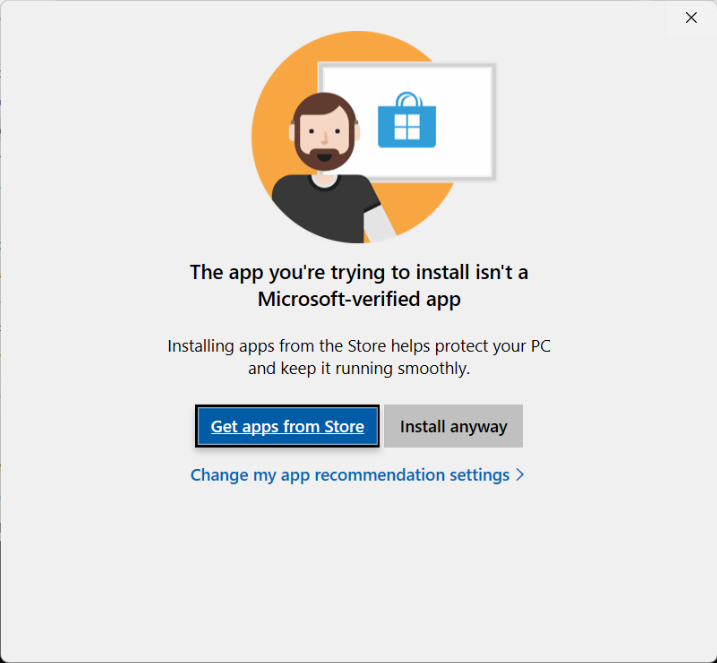
If you see a Microsoft verification warning on Windows 11, select
Install anyway.
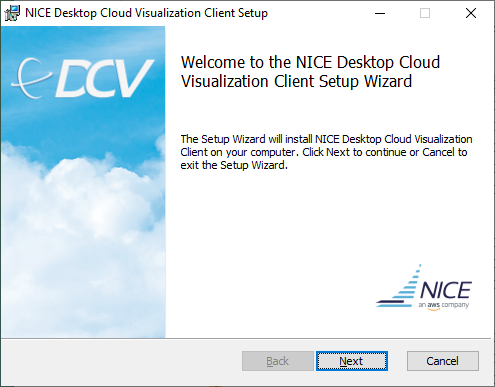
Click
Nexton the welcome screen.
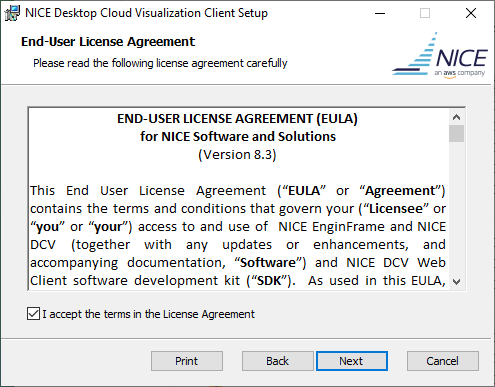
Read and accept the End-user License Agreement, then click
Next.
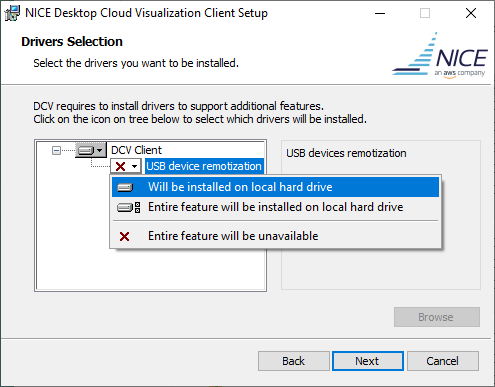
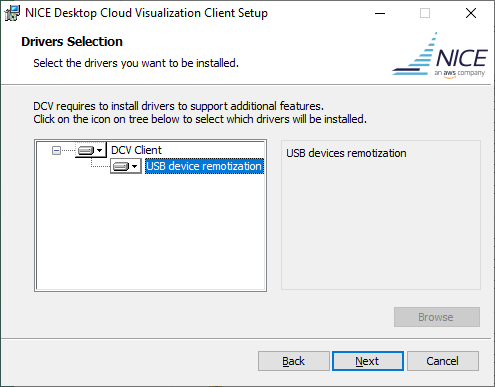
On the Drivers Selection screen, select Will be installed on local hard drive for USB Device remotization, then click
Next.
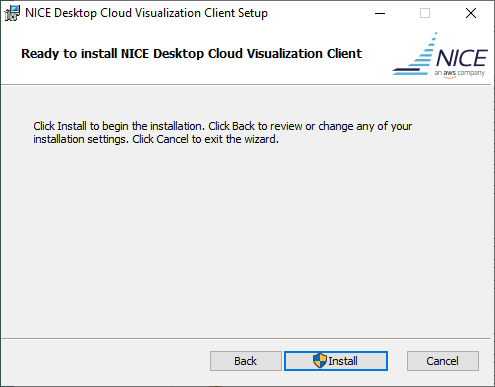
Click
Installon theReady to installscreen.
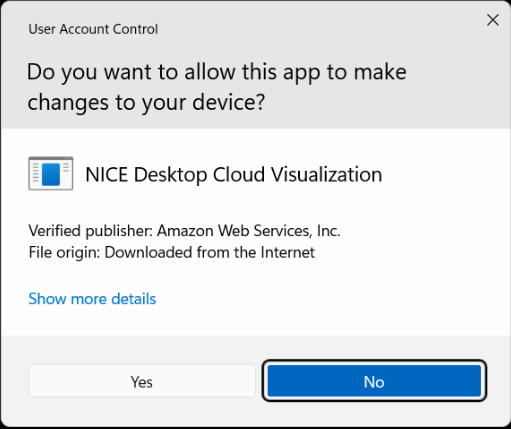
Allow the installer to make changes to your device by clicking
Yes.
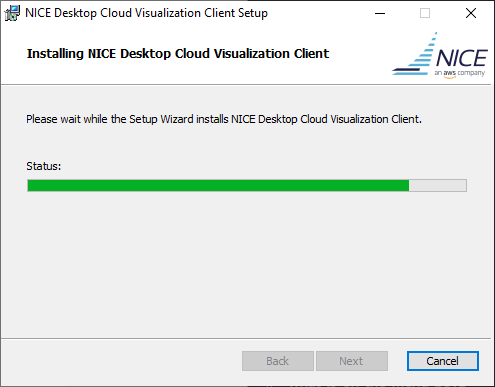
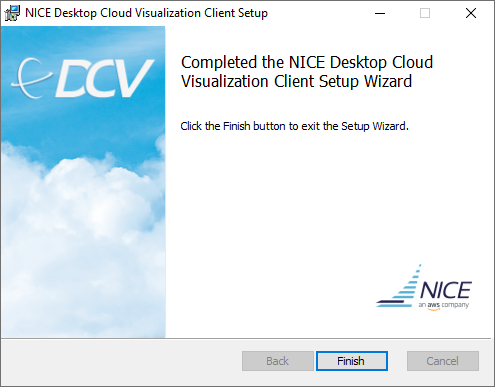
Let the installer finish, then click
Finishto complete the installation.
The Amazon DCV client is now installed and you can proceed to login.