Scenes
A scene in a digital twin is a comprehensive container that holds all the information and settings related to a specific digital twin environment. It defines the layout, configuration, and state of the digital twin, including the placement and properties of assets, datasets, and other elements. Within a scene, you can create multiple scenarios that allow you to control the visibility of assets and datasets—turning them on or off as needed—to simulate different conditions, workflows, or use cases. This flexibility makes scenes essential for managing, experimenting with, and presenting various aspects of your digital twin project.
Scenes Library
Scenes are the foundation of your Sandbox project. You can create as many scenes as you wish, and it may be a great way to experiment with new designs and ideas without impacting work you want to keep. Creating new scenes is generally done within Sandbox itself, but this is where you can upload scenes that you have previously downloaded. This is where you can manage all your scenes:
Accessing Scenes Library
From the left-side Assets menu, left-click
Scenes. Please review the Asset Library Overview for information about viewing and managing assets in the Assets library.
Note
If a scene is currently running, exit Sandbox by pressing the
 icon located at the lower right corner.
Uploading Scenes
At the top right corner, left-click
the
 button. The upload dialog is now displayed: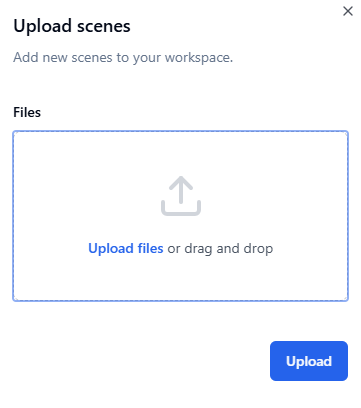
Drag and drop your file(s) onto the window, or click the
Upload fileslink to select your file(s) from your computer.

Once a scene is uploaded, it will be listed at the top of the list of assets.