On-Screen 3D Navigation
On-screen 3D navigation was implemented in version 4.20.0 and beyond of Sandbox.
Using Onscreen 3D Navigation

Collapsed on-screen 3D navigation panel. Click (▲) to expand panel.
To open the on-screen 3D navigation panel, press the up arrow (▲) at the bottom right of your screen. To close, press the down arrow (▼) at the top right corner.
A compass marked with an “N” for North shows the current camera orientation relative to North.
Navigation Controls
Below is a description of the navigation buttons. The functions of some buttons change depending on the selected navigation mode (3-6).
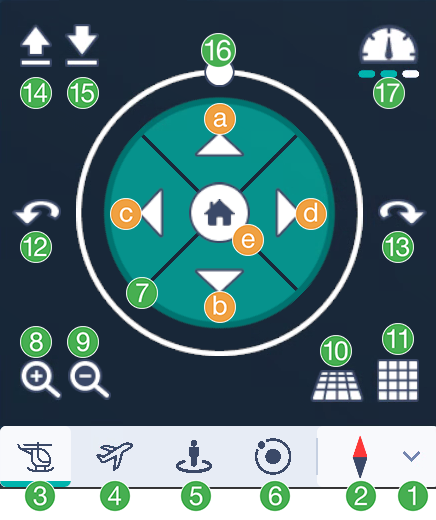
Expanded on-screen 3D navigation panel.
Surrounding the home button are four arrows, enabling the user to pan relative to the ground:
Forward
Backwards
Pan left
Pan right
Note
The only exception is in Free Flight mode (4) where the forward button (a) will zoom in in the direction the camera is pointed. Back button (b) will zoom out in the direction of the camera. A central home button (d) returns the user to a predefined starting point upon the scene’s opening.
Zoom in
Zoom out
Tilt camera up
Tilt camera down
Rotate left
Rotate right
Note
These buttons will rotate the view around the z axis of the camera. The only exception is in Orbit mode (6): these buttons will rotate around an external point relative to the camera. For more information, see (6) above.
Move up (increase elevation)
Move down (decrease elevation)
In First Person Perspective mode, these buttons will adjust the height of the walking person.
Direction and Orientation
Clicking and dragging this circle enables 360-degree rotation, altering the viewer’s direction (camera rotation).
Speed Control
Allows users to adjust navigation speed with the following functionalities:
Toggle Speed Modes: Switch between Default, Fast, and Slow speed modes.
Visual Indicators: Speed changes are reflected in the speedometer icon and progress bar.
Mode-Specific Speed Persistence: Selected speed mode persists across supported navigation modes (Helicopter, Free Flight, Walking), adapting to each mode’s base speed.
Hotkey Support: Use Shift for Fast and Ctrl for Slow speed adjustments, with the UI updating accordingly. Releasing the hotkey reverts the speed to Default.