Buildings
In scenes, buildings are often added automatically and tied to the scene you loaded. The buildings menu allows you to see which buildings you have made changes to, such as color and visibility.
Accessing Buildings


Editing Buildings
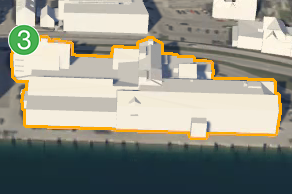
To select a building, left click on the building that you want to edit. An orange border can now be seen around the entire building. To deselect a building, left click outside the building where there are no buildings.
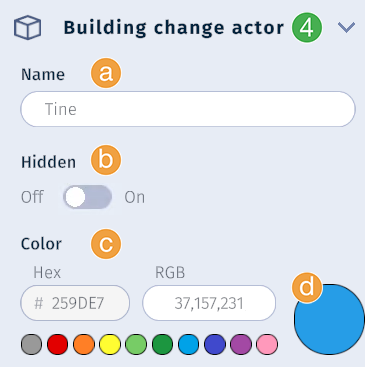
Once a building is selected, the building’s information is displayed in the Properties Panel. The following properties can be edited:
Name: Give the building a name for easier identification.Hidden: Toggle the visibility of the building.Color: Change the color of the building.Current color: This circle shows the current color of the building.
Set a color by specifying a
HexorRGBvalue, or by using one of the color presets.
Example building edits:

In this example:
Building selected with orange border.
Building color changed to
Hexvalue#259DE7.Building hidden from scene.
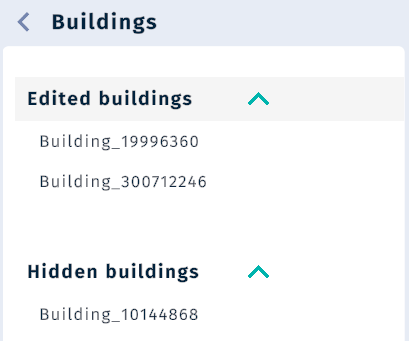
Building ID
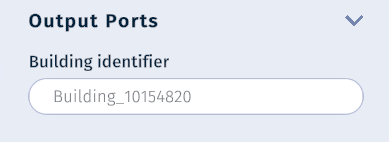
Building IDs can be used to reference buildings in datasets to change their color. The building ID can be found in the properties panel when a building is selected under Advanced: Output Ports: Building identifier.
An example of using building IDs in a dataset to change building colors can be found in the Data Visualisation documentation.