Find Objects
The Find Objects menu is useful for tracking down objects by name and gives a good overview of what a scene consists of.
Accessing the Find Objects Menu


Searching for an Object

Use the search bar to search for objects by name. Shows all objects in the scene if the search bar is empty.
Click on the object name to select and view the object in the scene.
Locating an object from within a scene
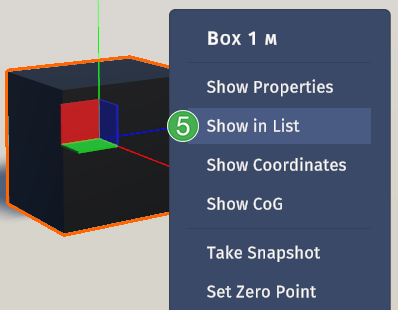
Right-click an object in the scene and select
Show in listfrom the context menu to locate the object in theFind Objectslist. The object will then be highlighted. Click on the name in the list to make the object the active object in the scene and in the Properties Panel.
Note
When an object is selected from the Find Objects list, the camera will move to focus on the object in the scene.