Custom Zero Point
All 3D models have an Origin, which is a point that is typically located in the center of a bounding box surrounding the model. However, depending on the intent of the model, this point may be placed in different locations. For instance, a door with the intention of being rotated open, should have its origin set to align with the location of the hinges on the X axis of the model. Rotating the object in 3D space will then simulate how a door would open if attached to a door frame with hinges. Sandbox does not alter the origin of a model during import.
A custom Zero Point in Sandbox allows you to temporarily alter an object’s origin (zero point) in order to place another object relative to this new zero point. This can be particularly useful when planning a layout based on a diagram or a blueprint where measurements are usually made from a point other than a center point.
How to set a Custom Zero Point
In this example we will set a customer Zero Point on the stern of a barge. Then we will place a 1x1m primitive on top of the barge and set its coordinate space to Custom in order to use the custom Zero Point.
Right click where you want to set a new Zero Point. Then expand the context menu by clicking on the right black arrow:
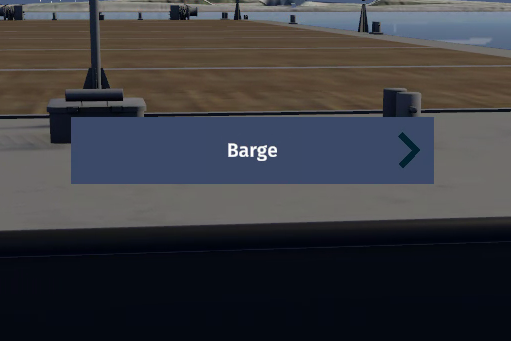
A Barge menu appears after right clicking on the barge.
Select Set Zero Point from the context menu:
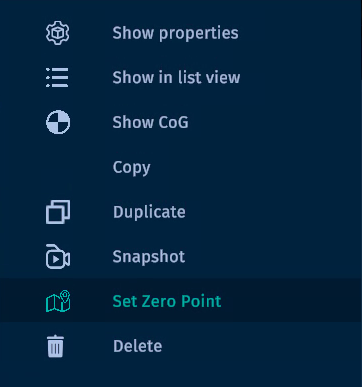
Context menu
A blue sphere appears where the new Zero Point is placed:
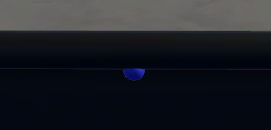
Blue sphere indication new Zero Point
Now place a 1x1m primitive on top of the barge:
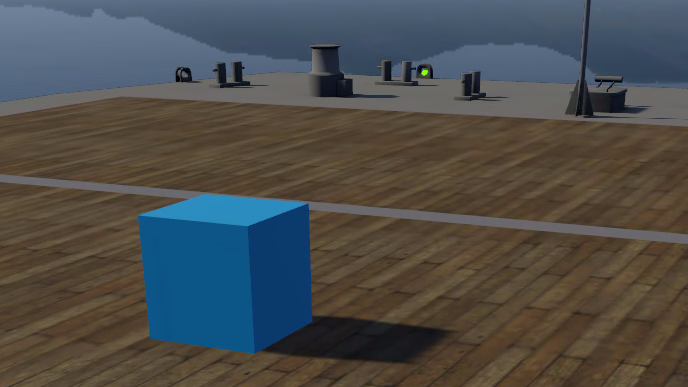
1x1 Primitive placed at top of barge
In the :doc: /user-interface/properties-panel, you will see the following information about the location of the primitive. Please observe that it is placed -20.09 meter from the center of the barge on the north axis (barge length) and -1.39 meter from East (barge width). The center of the primitive is located at 0,0,0 by default. If you were to set 0 in all the Translate fields, you would move the box to the center of the barge. The primitive would also be halfway sunken into the barge since it’s zero point is located in the center.
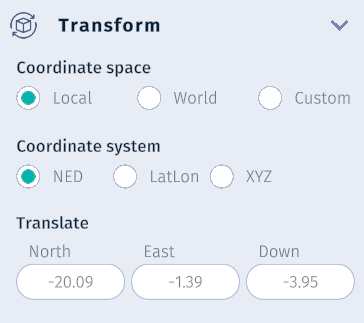
Properties Panel
Change the Coordinate space to Custom to have the primitive use the custom Zero Point we created earlier. If you now change the Translate values to 0, the cube will appear to be on the tipping point on the stern of the barge:
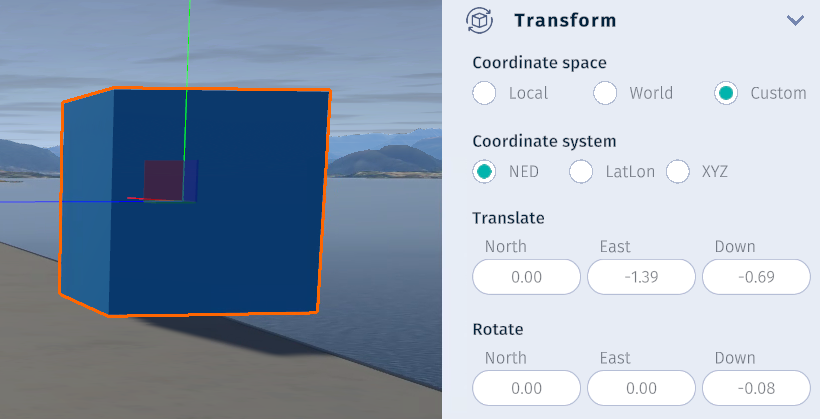
The primitive is using the Custom Coordinate space and is positioned relative to the Zero Point placed on the stern of the barge.
Zero Point Rules
Only one zero point allowed. Adding a new one replaces the existing.
Moves with parent object when repositioned.
Display only: Affects position/orientation display, not input/output ports.
Not saved with scene (future updates will enable permanent storage).
Zero Point Example
Brief video showing how you can set a custom Zero Point on an object and position another object relative to this Zero Point.