Session Menu
The session menu provides access to key functions and tools while working in Sandbox. It is located on the right side of the screen and includes options for managing scenes, saving progress, and exiting the simulator.
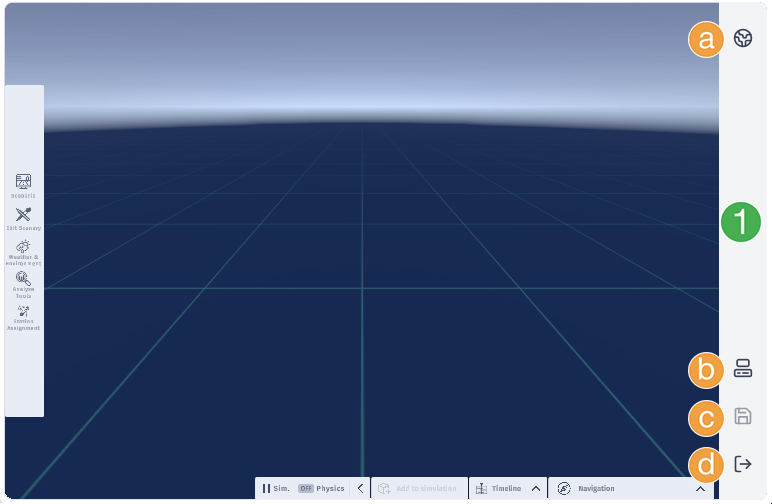
Sandbox before a scene is loaded. You can launch a scene from within the scene menu (2) located in the session menu (1).
Session menu: Vertical menu located on the right side of your screen.
Fixed session menu options:
Scene menu: Load, save, and stop scenes from the Scene Menu.
Amazon DCV client: Launch session in the Amazon DCV client. Use of 3D mouse is currently only supported in a session running within an Amazon DCV client.
Save: Save your current scene. Use the scene menu to save as a new scene.
Exit simulator: Return to the web app dashboard and assets library. This does not stop your scene or session.
Note
The session menu can obscure other menus, such as the properties panel. You can close the session menu by clicking the active tab. For example, clicking the globe will collapse the session menu if it is open.