Context Menu
Right-clicking an object brings up a context menu with various options depending on the selected object. Example options for a Ball Joint Actor (other objects may have fewer options):
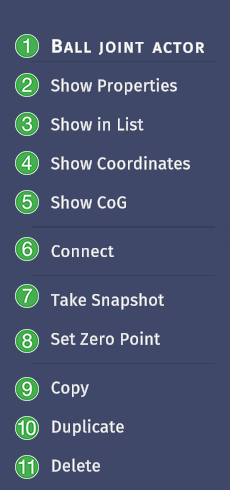
Name of selected actor
Show Properties: Opens the Properties PanelShow in List: Highlights the object in the snapshot viewShow Coordinates: Opens up a Transform Panel for the object (coordinate system, space, position, rotation). Transform panels can be pinned to the screen.Show CoG: Renders a visual representation of the center of gravity for an object. Right-click and press “Hide CoG” to hide the visual.Connect: If two Constraints of the same type, or wire nodes, are selected, clicking “Connect” will connect the two selected objects.Take Snapshot: Take a snapshot from the object.Set Zero Point: Place a Custom Zero Point at the location right-clicked on the object.Copy: Copy the object to the buffer.Duplicate: Duplicate the object. A copy is placed in ghost mode at the same location as the original. Press “Add to scene” to complete duplication.Delete: Delete the object.